
Contents
Step 3: Create the Product and Its Prices
-
Go to → → and click .
-
Enter
Gold Membershipas the Name and leave Slug/Alias empty: saving makes itgold-membershipfrom the name. The slug is the product's address on your site and the name you use for it in articles, so type a shorter one if the name is long. -
Write a Short Description. Paddle shows it in the checkout, and your product pages show it under the name.
-
Leave Access as Public, so everyone can see the product, and choose Uncategorised in Category.
-
Leave Purchase Type as Access: another purchase adds time (stacking), so that a member who renews early keeps the rest of their current year.
-
Choose Gold in Level. The product now grants the level's groups; you don't need to add Gold Members on the Actions tab as well.
-
On the Paddle tab, check the Tax Category. Standard digital goods suits most digital memberships. Any other category must be approved in your Paddle account before Paddle accepts it.
-
Click . PaddleSubs creates the product in Paddle and fills in its Paddle ID.
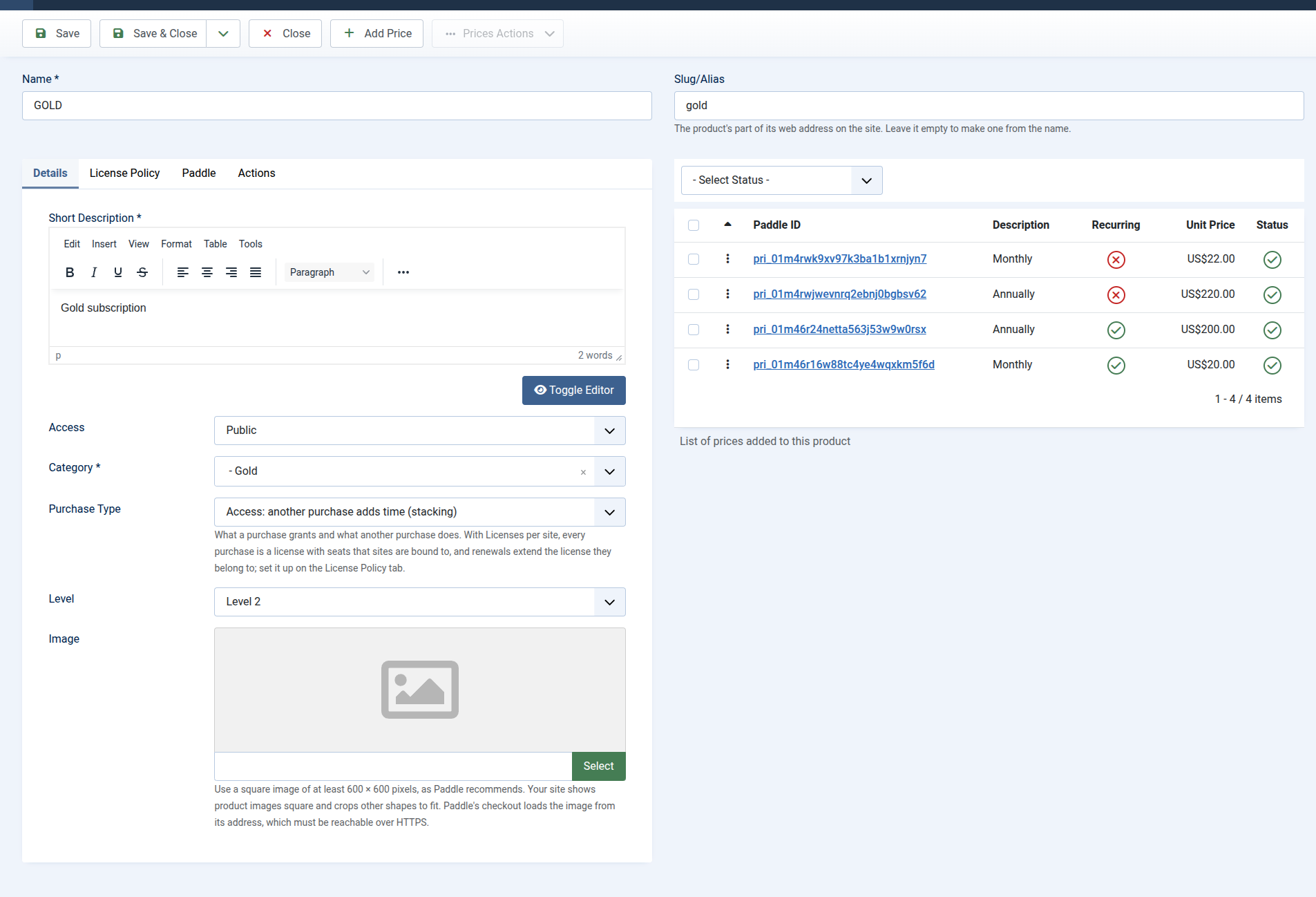
-
Click in the toolbar. A panel opens on the right.
-
For the yearly price: enter
Yearlyas the Name (customers see it on the product page, in the checkout and on their invoice), an amount in Base Price * and its currency, and leave Billing Type as Non-Recurring with an Expiry Period of1Year. Click . -
Click again. For the monthly price: enter
Monthly, an amount, and set Billing Type to Recurring with a Billing Cycle of1Month. Click . -
Click .
Both prices now exist in Paddle too. You can check in your Paddle dashboard, under Catalog.