
Contents
The Get Started Page
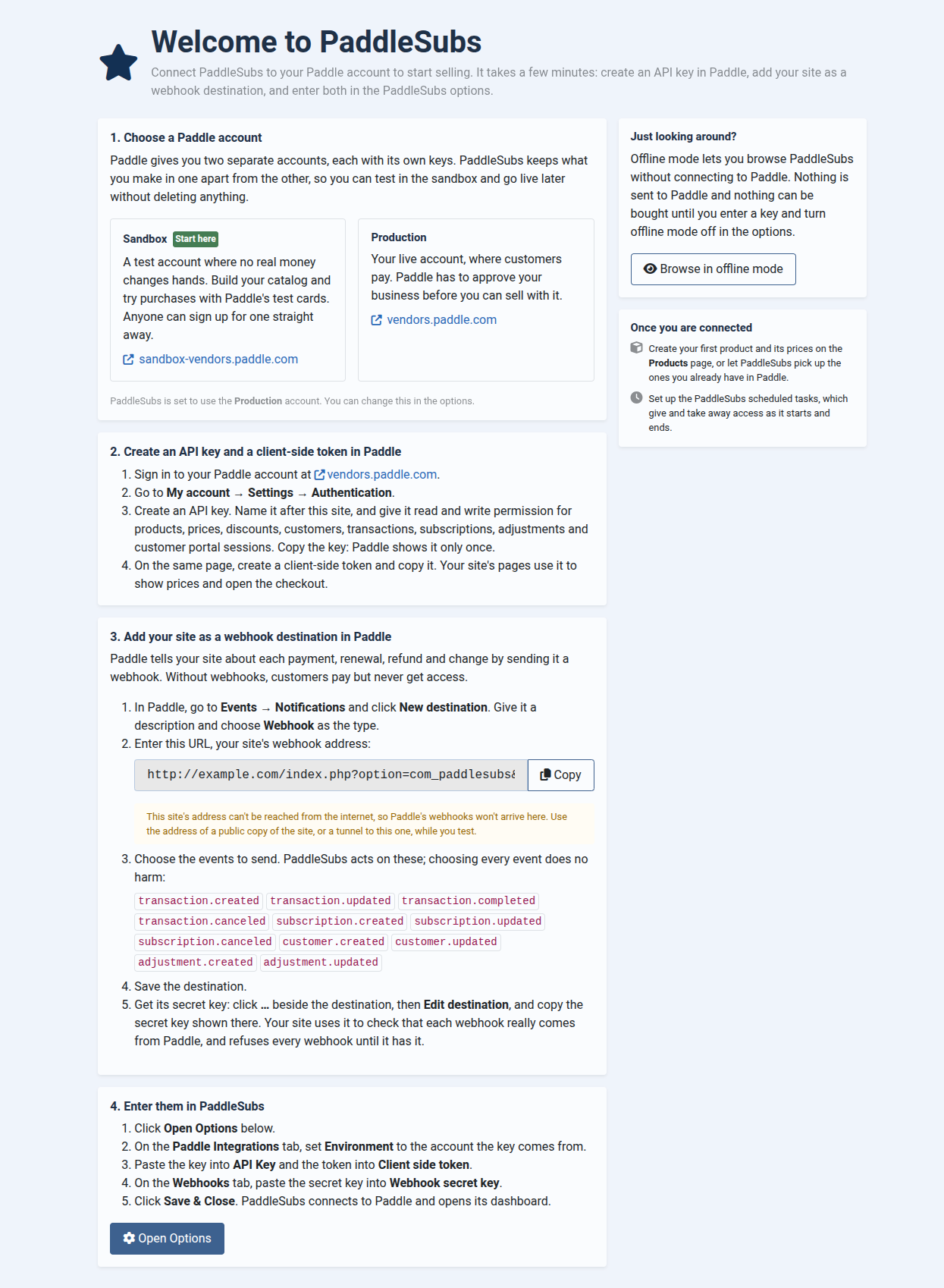
The first time you open PaddleSubs, before an API key is entered, it shows Welcome to PaddleSubs instead of the dashboard. Nothing is wrong: the page explains how to connect PaddleSubs to Paddle, in four steps:
1. Choose a Paddle account: what the sandbox and live accounts are for, with a link to each, and which one PaddleSubs is set to use.
2. Create an API key and a client-side token in Paddle: where to find them in Paddle and which permissions the key needs.
3. Add your site as a webhook destination in Paddle: your site's webhook URL, made from its address, with a button, and the events to send (the section called “Setting Up Webhooks”). If the site's address can't be reached from the internet, such as
localhostor a.localor.testname, the page warns that Paddle's webhooks won't arrive there.4. Enter them in PaddleSubs: which fields to fill in, for the key, the token and the webhook secret key, with an button. After you come back to this page, which opens the dashboard once there are both a key and a webhook secret key.
With a key but no webhook secret key, the page stays, with Webhooks are not working yet in red above the steps and steps 3 and 4 outlined in red: without the secret key your site refuses every webhook, so customers who pay get no access. Every other PaddleSubs page shows the same problem as an error message, Webhooks are not working., with a Show me how link back to step 3, until the secret key for the environment in use is entered (see Procedure 2.5, “Enter the secret key in PaddleSubs”). Offline mode shows its own warning instead.
, under Just looking around?, turns on Offline Enabled and opens the dashboard, so you can look at every page without a Paddle account. Turn it off in the options once you have entered a key. Once you are connected lists what comes next: your first product and the scheduled tasks.
Users who may not change the PaddleSubs options see the steps without the buttons, and a note to ask a Super User.
The page appears only while the environment in use has no API key and no products. Products are the first thing any site sets up, and every purchase, import or sync from Paddle leaves some behind, so an environment with products has been in use: if its key goes missing later, PaddleSubs shows the Paddle API unavailable page instead (the section called “When Paddle Can't Be Reached”). Switching Environment to Production before you have a live key shows the Get Started page again, for the live account.